Recommendation History
The History section provides a timeline view of all recommendations identified in your environment.
It helps you track when recommendations were created, how long they remained active, and their potential impact.
It provides a complete lifecycle view of recommendations — from creation to expiry and action.
This section tracks recommendations over time, regardless of whether they were acted upon.
Overview
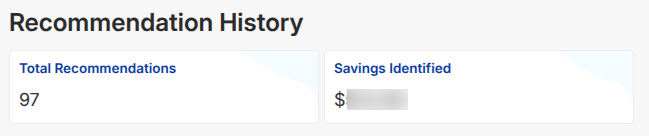
At the top of the page, summary cards provide a quick snapshot:
- Total Recommendations
- Savings Identified
Date Filter
You can filter recommendation history based on a selected time range.
- Analyze trends across different periods
- Track how recommendations evolve over time
Recommendation Table
The table provides detailed tracking of each recommendation:
- Account ID & Resource
- Region & Service
- Savings Identified
- Recommendation Type (Cleaner, OverProvisioned, etc.)
- Creation Date
- Expiry Date
- Description
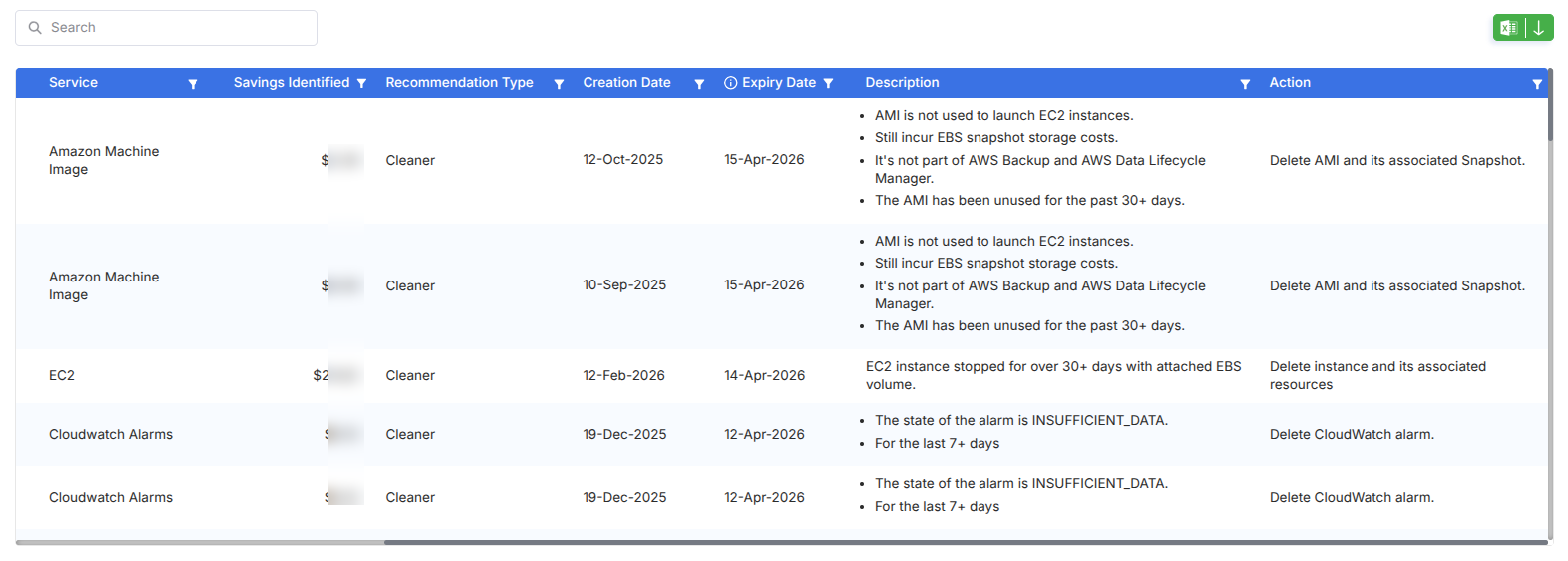
Savings shown here are identified opportunities, not necessarily realized savings.
Understanding the Lifecycle
Each recommendation follows a lifecycle:
- Created → When the recommendation was first identified
- Active Period → Duration it remained relevant
- Expiry → When it is no longer applicable or resolved
This helps you understand:
- How long optimization opportunities remain open
- Whether recommendations are being acted upon in time
Description & Actions
Each entry includes context explaining:
- Why the recommendation was generated
- What issue was identified
- Suggested action to resolve it
Examples:
- Removing unused AMIs
- Deleting idle EC2 instances
- Cleaning up unused CloudWatch alarms
Filters & Controls
- Search Bar – Locate specific resources
- Column Filters – Available on each column
- Export Option – Download data
- Date Range Selector – Analyze trends over time