Notification Groups
The Notification Groups feature enables you to configure custom alert groups. These groups can be linked to either email or Slack channels to ensure timely alerts are sent to the right recipients for any cost anomalies or threshold breaches.
It helps streamline and centralize alert management across teams. By configuring email and Slack notifications, you can ensure that the right team members are always aware of important cost trends, spikes, and breaches.
Email Notification Groups
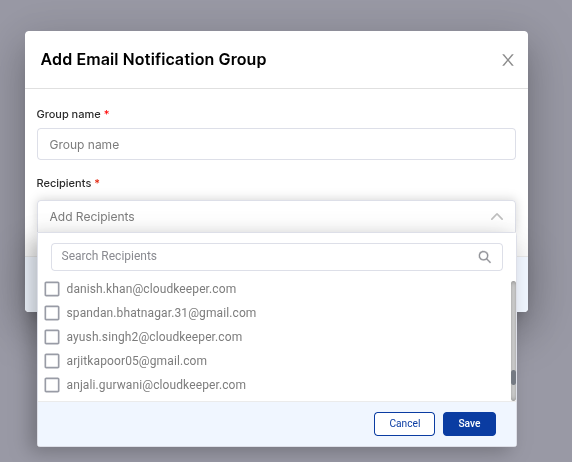
This section allows you to create email-based notification groups. Each group can have multiple recipients who will be notified when a threshold breach occurs.
To add an email notification group:
- Click on the Add Notification Group button.
- Enter the Group name and select the Recipients.
- Once completed, click Save to confirm the changes.
Below is the example for adding an email notification group:
Slack Notification Groups
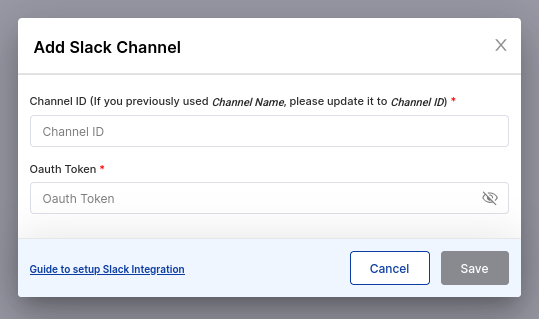
Slack integration allows you to send notifications directly to Slack channels. This feature enables teams to be notified of any anomalies directly in their communication workflow.
To add a Slack notification channel:
- Click on Add Slack Channel.
- Provide the Channel ID and the OAuth Token.
- Follow the provided instructions in the integration guide.
Here’s an example of the Slack integration form:
Managing Recipients
Once the notification groups are set up, you can view and manage them on the Notification Groups page. Here, you can see all the existing notification groups along with their respective recipients.
For example, the DevOps Admins group includes recipients from the DevOps team, while the Finance group is set up for financial monitoring.
Below is an example of the Notification Groups overview:
