Budget Alerts Overview
The Budget Alerts dashboard allows users to set alerts based on their budget thresholds, ensuring they are notified whenever costs exceed certain limits. This feature helps you keep control over your spending and avoid exceeding budgets set for various services or operations and get timely notifications on cost deviations, Reserved Instance utilization, and expiration alerts, as well as daily cost summaries.
Budget Alert Configuration
- Alert Frequency: Choose between Daily or Monthly alerts depending on the frequency with which you want to be notified.
- Email Notification Group(s): You can associate multiple email groups to receive notifications.
- Slack Channel(s): If you are using Slack for team communication, you can configure Slack channels to receive alerts.
- Threshold: Set the cost threshold for the alert to trigger.
Cost Deviation Alerts
The Cost Deviation Alerts allow users to be notified when their AWS spending deviates significantly from the expected or forecasted budget. This feature helps users to identify and react to unexpected cost spikes early, preventing overspending.
To set up an Cost Deviation Alerts, you'll need to configure the following:
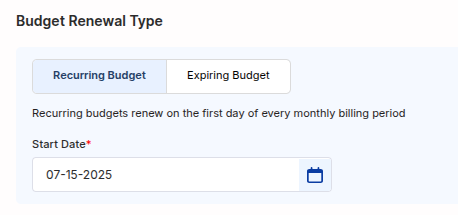
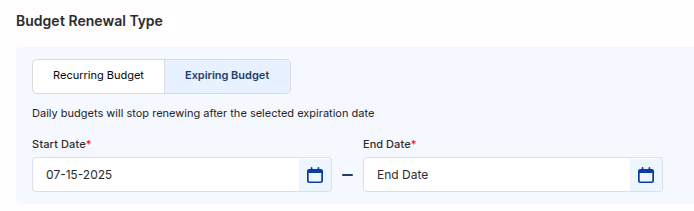
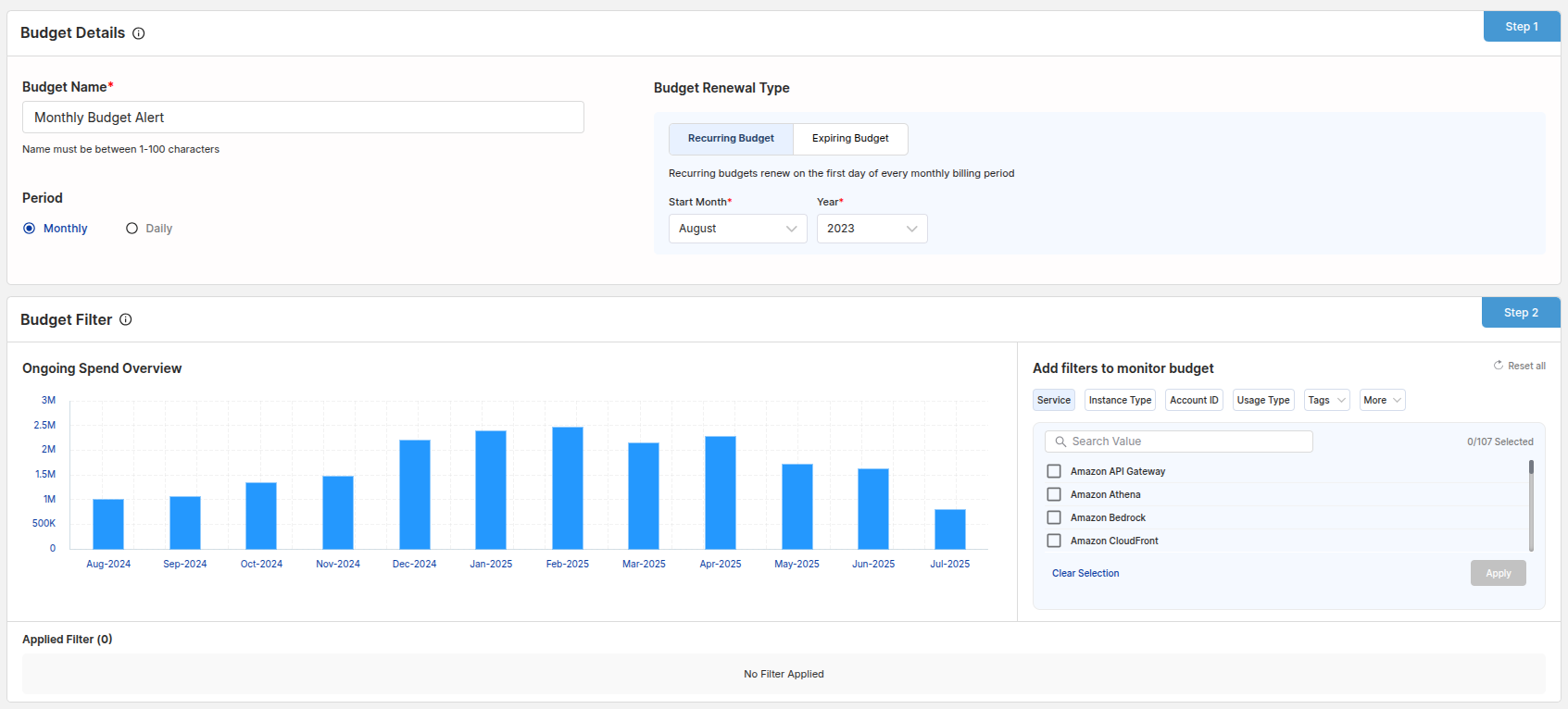
- Budget Details: This includes defining the Budget Name for the alert, and selecting the Budget Renewal Type (either Recurring Budget or Expiring Budget).
- Recurring Budget: Renew on the first day of every monthly billing period, providing continuous budget tracking
- Expiring Budget: Daily budgets will stop renewing after the selected expiration date, useful for temporary projects or time-limited initiatives
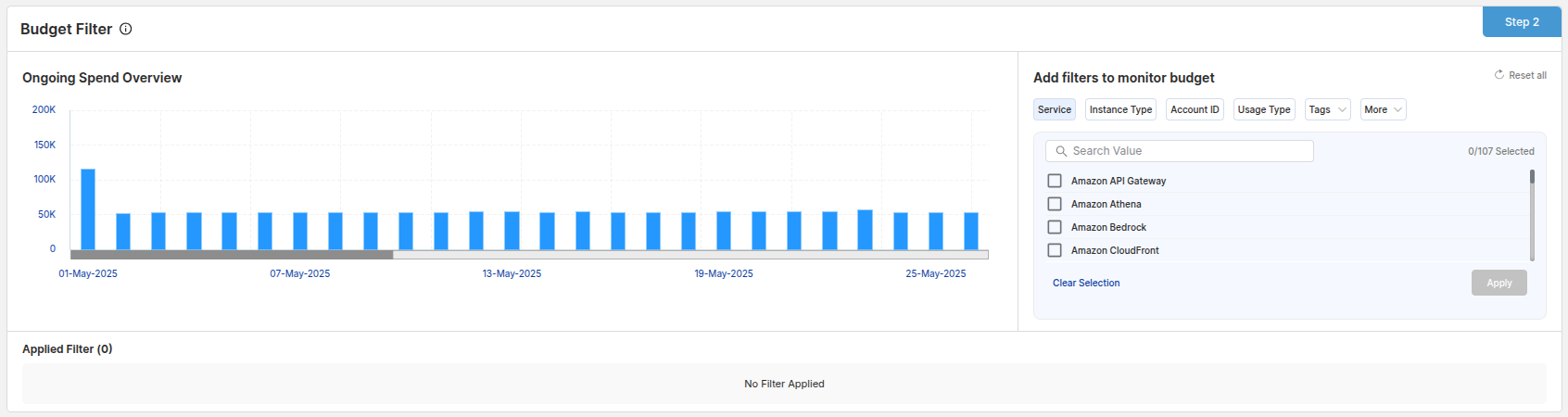
- Budget Filter: This section lets you refine your alert based on specific AWS services or regions. This helps in narrowing down your alerts to monitor only the critical services or regions of your cloud infrastructure. For example, you can filter costs by service such as EC2, S3, or Lambda.
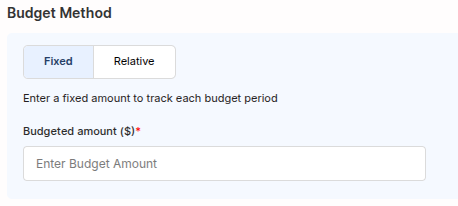
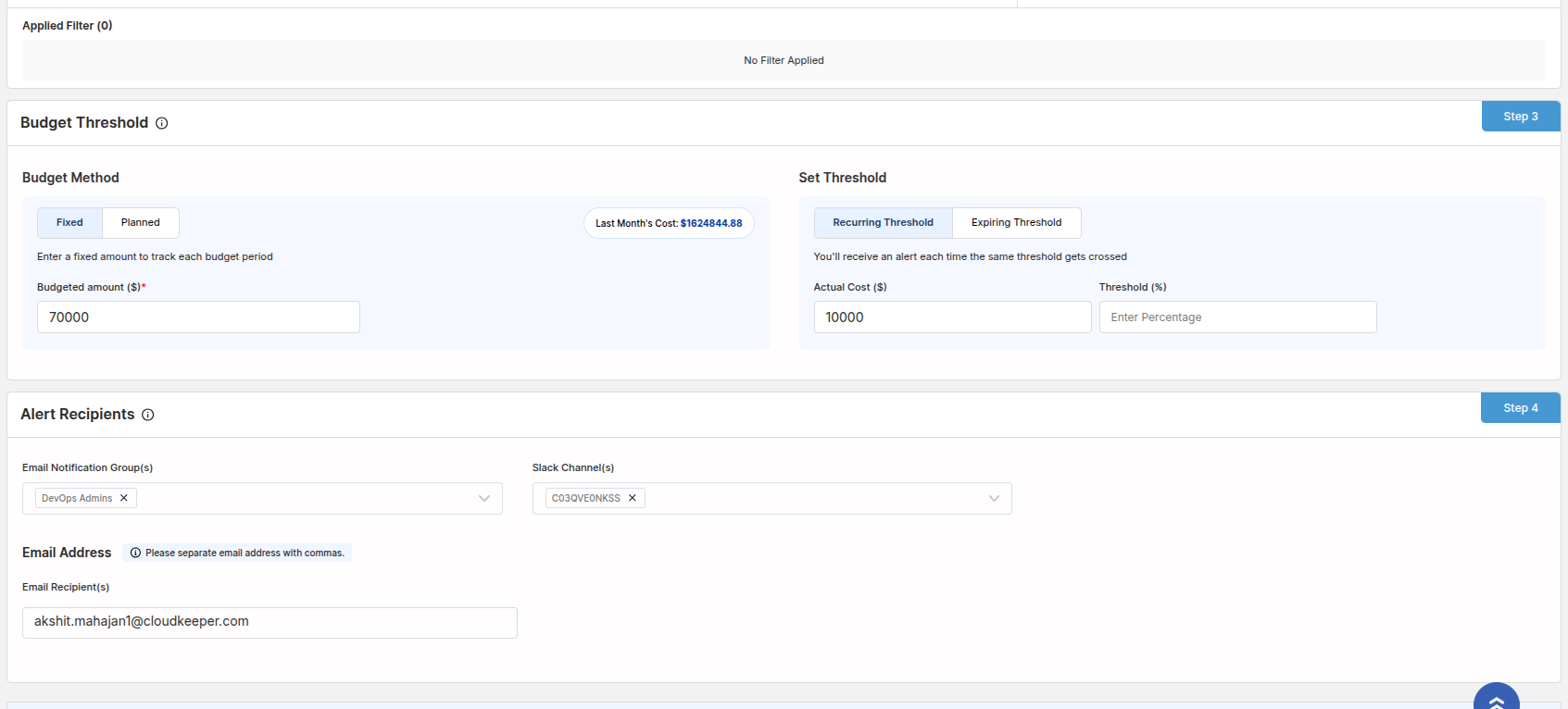
- Budget Threshold: You can set up budget thresholds using different methods to track your spending:
- Budget Method:
- Fixed: Enter a fixed amount to track each budget period, providing a consistent spending limit
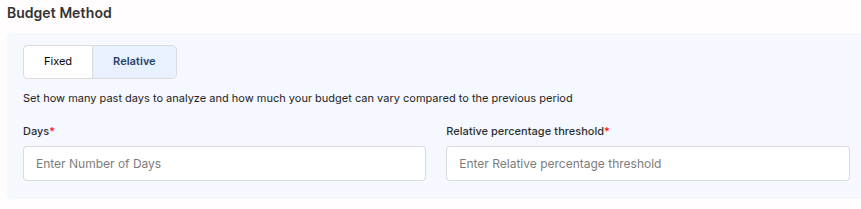
- Relative: Set how many past days to analyze and how much your budget can vary compared to the previous period, allowing for dynamic thresholds
- Days: When using relative budgeting, specify the number of past days to analyze for establishing your baseline
- Relative percentage threshold: Define the percentage variance allowed from your baseline spending before triggering alerts
- Budget Method:
- Alert Recipients: You can configure the Alert Recipients by adding email groups or Slack channels to receive notifications.
Example
Below, we show an example configuration for Cost Deviation Alerts alerts
RI Expiry Alerts
RI Expiry alerts notify you when your Reserved Instances (RIs) are nearing their expiration. This allows you to take action on renewing or purchasing new RIs before they expire.
Example
The following section shows a configuration screen where users can set up alerts for Reserved Instance expiry.
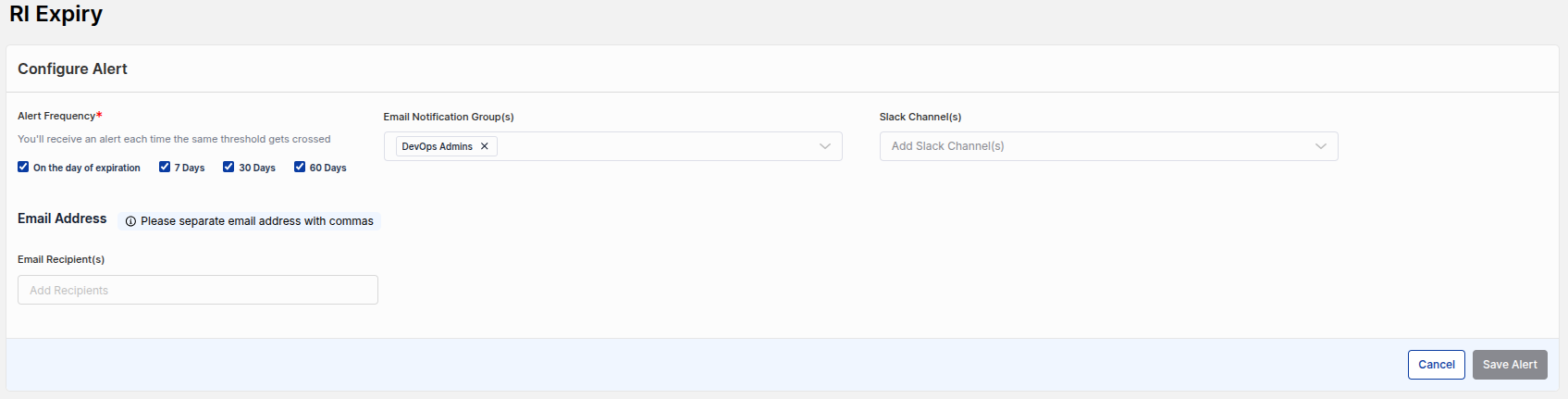
This screen allows you to define which email notification group or slack channel you want to send notification to.
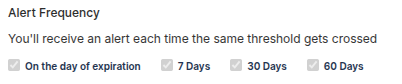
Alert Frequency
The alert can be configured to notify you at the time of expiration, or 7, 30, or 60 days in advance.
RI Utilization Alerts
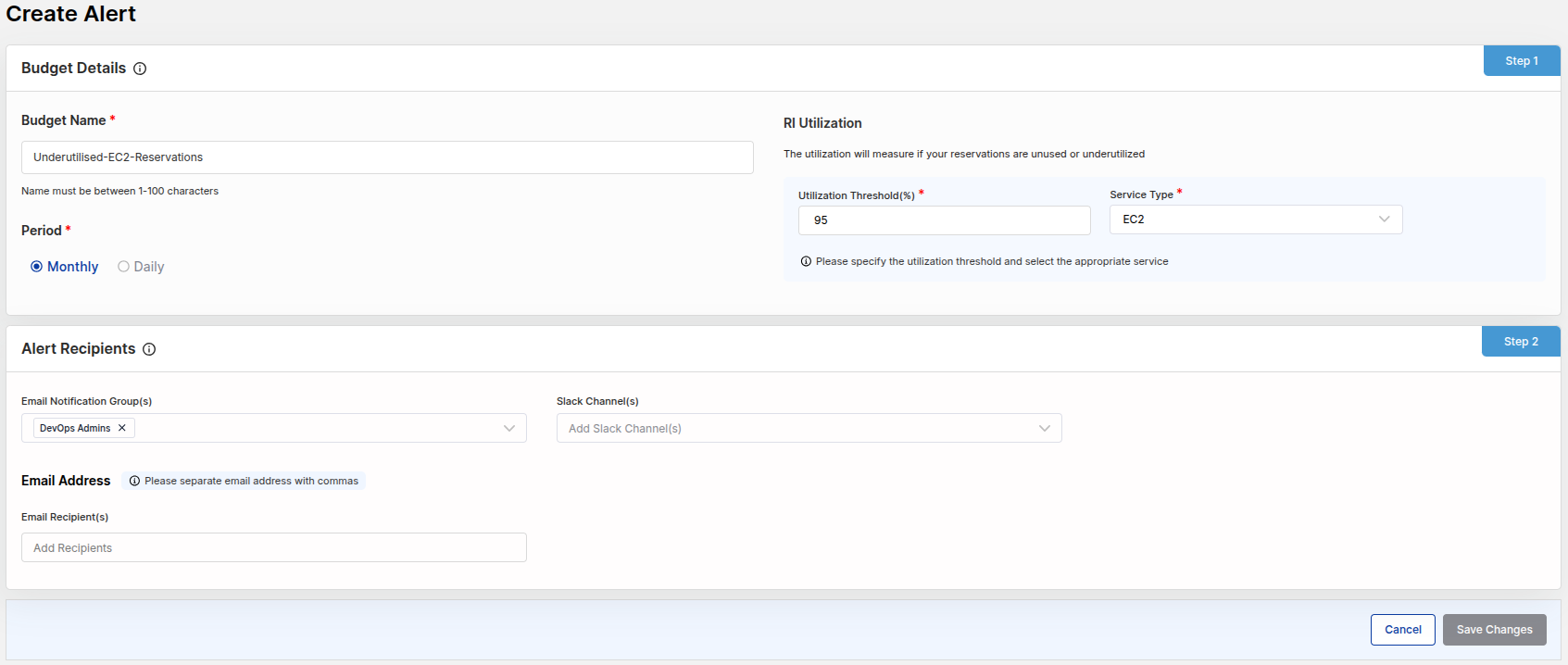
This type of alert monitors the utilization of Reserved Instances. You will be alerted when the utilization of your RIs falls below a certain threshold, helping you optimize your reserved capacity. The utilization measurement helps identify if your reservations are unused or underutilized.
To set up an RI Utilization Alert, you'll need to configure the following:
-
Utilization Threshold (%): This is a percentage that defines the level of utilization you expect from your Reserved Instances. For example, if you set it to 80%, you will be alerted if your RI utilization drops below 80%.
-
Service Type: You can specify which AWS services the alert should monitor. This could be EC2 (Elastic Compute Cloud), RDS (Relational Database Service), ElastiCache, Redshift, or others. This helps ensure that you’re tracking the RI utilization of the relevant services.
-
Period: Choose whether you want to be alerted on a daily or monthly basis, depending on how often you need to be notified about your utilization status.
Example
Below, we show an example configuration for RI Utilization alerts, allowing users to set thresholds for when RI utilization is low.
Daily Summary Report Alerts
These alerts provide a daily cost summary of your AWS spending, helping you stay informed about the daily breakdown of your cloud costs. You can configure this to be sent via email or Slack.
Example
Here is an example configuration screen for setting up Daily Summary Report alerts, which helps you track daily spending trends.
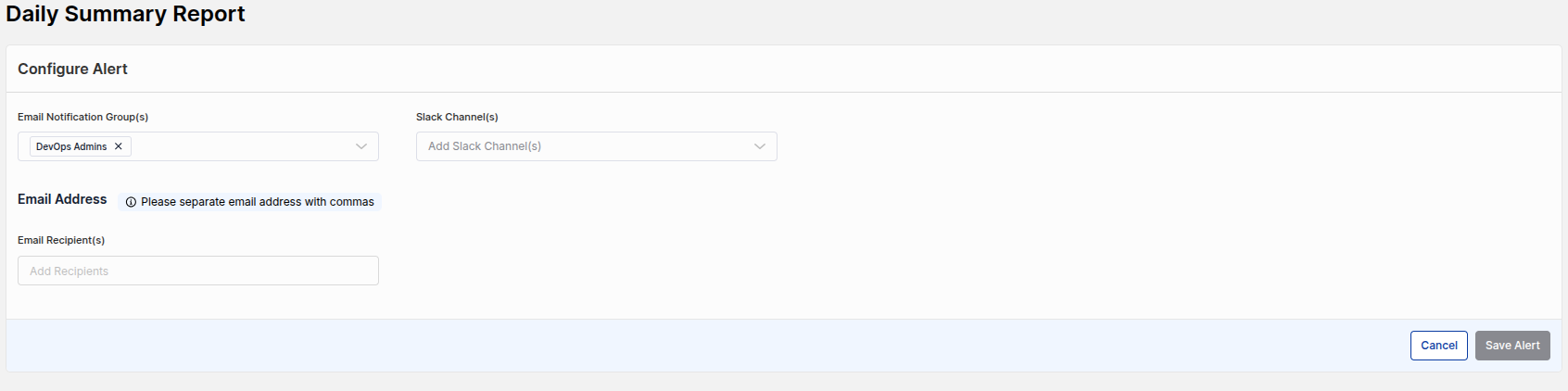
The Daily Summary Report can be configured to be sent to specific email recipients or Slack channels.