Multi-Account View (MAV)
The Multi-Account View (MAV) page allows users to view and manage multiple AWS accounts from a single interface. This page enables centralized monitoring, cost allocation, and user management across linked AWS accounts, helping organizations optimize their cloud resources more efficiently. A MAV (Multi-Account View) is simply a logical grouping of AWS accounts. It provides a convenient way to manage and report on a specific set of accounts within CloudKeeper Offerings.
MAV List
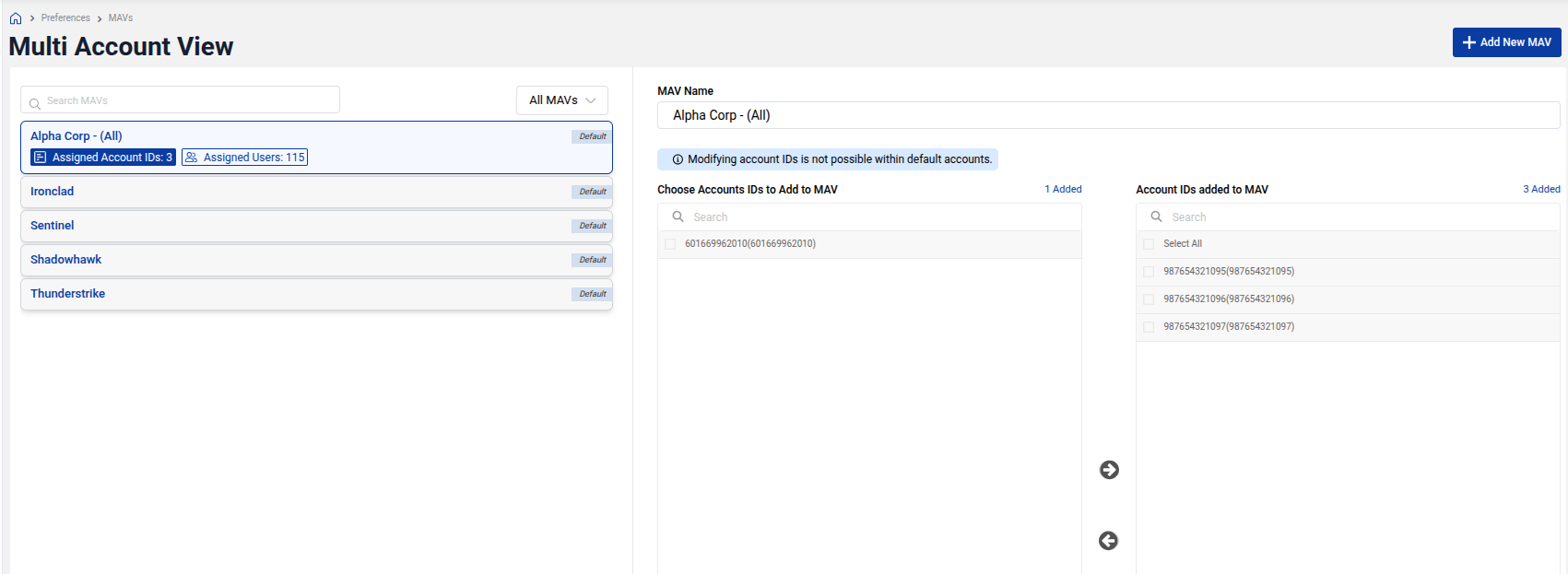
The MAV List displays all the MAVs in the system. Each MAV is associated with a group of accounts, allowing users to easily monitor and manage costs across different services and regions. You can quickly see how many accounts are assigned to each MAV and view the assigned users for each MAV.
Example
Below is an example of the MAV List, showing the different MAVs and their assigned accounts.
Create New MAV
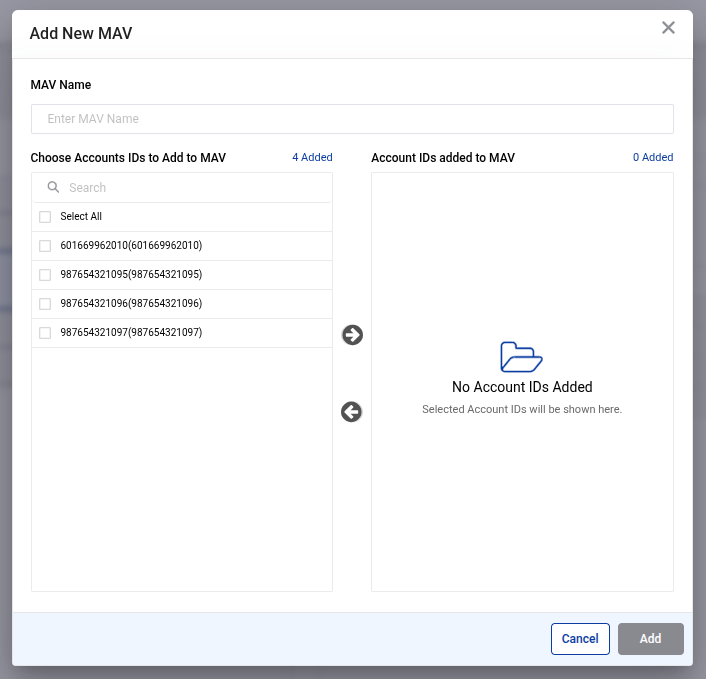
To create a new MAV, click on the Add New MAV button. This will allow you to define the MAV Name and select which AWS account IDs to add to the MAV. You can select multiple accounts to be grouped under the same MAV, which simplifies managing and viewing the accounts together.
Once an MAV is created, users with appropriate permissions can be assigned to that MAV to access the associated accounts.
Example
Here’s an example of the Create New MAV modal, where you can add account IDs to the MAV and name the MAV.
Modify MAV
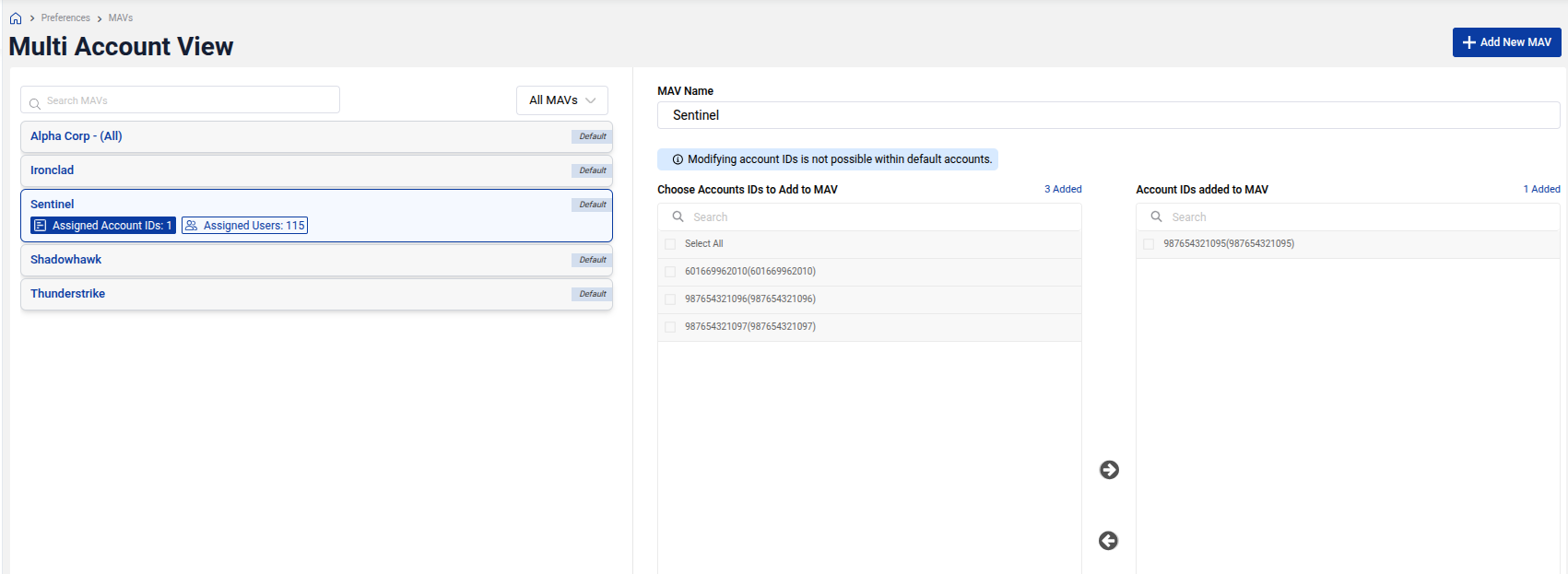
To modify an existing MAV, simply click on the MAV Name from the MAV list. This will open the MAV details, where you can view the current accounts and users associated with the MAV. You can add or remove accounts from the MAV by selecting and deselecting them in the Choose Accounts IDs to Add to MAV section.
Additionally, you can assign more users to the MAV from this section, giving them the appropriate access to monitor and manage the accounts within that MAV.
MAV User Assignment
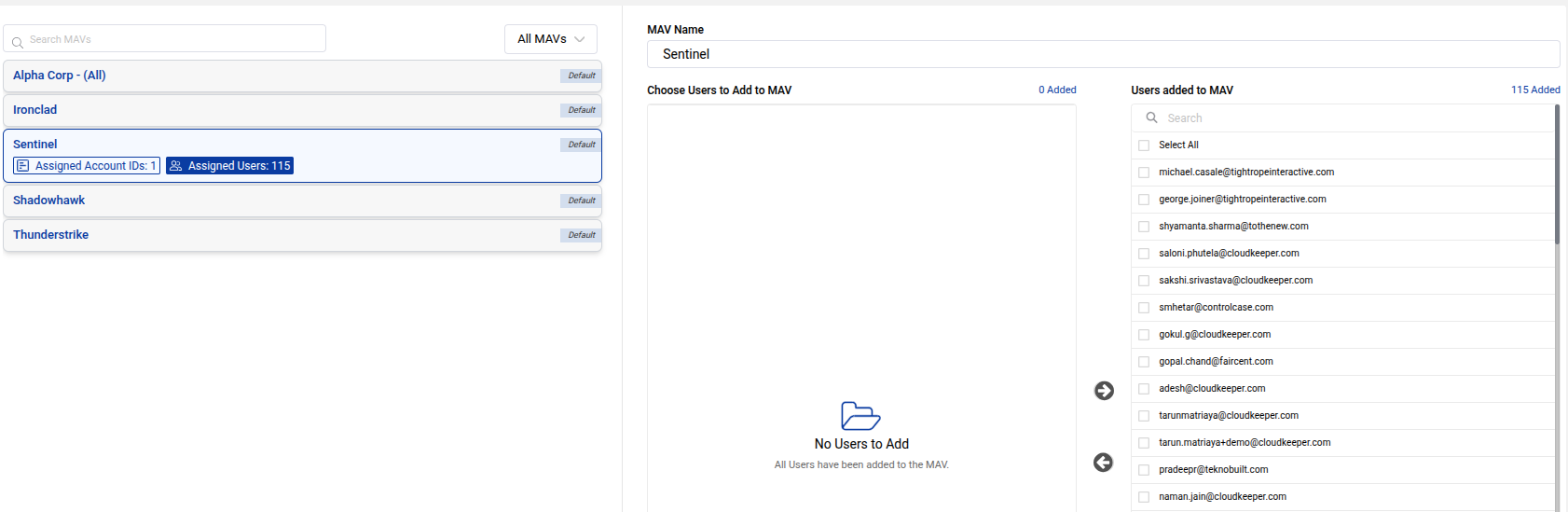
Each MAV can have multiple users assigned to it. When you add users to an MAV, they will have access to the accounts associated with that MAV. This helps in providing different teams with the visibility and permissions they need to monitor their cloud costs and resources effectively.
Example
In this image, you can see how users are assigned to a specific MAV, ensuring that the correct teams or individuals can access the relevant AWS accounts.