Tags Management
The Tags Management page enables you to create and centrally manage cost allocation tags across your AWS environment. Tags are an essential tool to logically group resources for improved cost allocation, tracking, and reporting. You gain clear insights into cost distribution, improve accountability, and enable better decision-making for your cloud operations.
What are Tags?
Tags act as keys that exist on resources within your AWS accounts (MAVs). These keys (e.g., environment, application, workload) help you group and track resources more effectively.
When you create a tag in Lens, you are essentially defining a tag key that already exists in your accounts. By adding multiple MAVs to a tag, Lens will scan those accounts and pull in all resources that contain this tag key.
Once grouped, you can generate consolidated reports based on the values of that tag key (e.g., dev, prod, PROD, etc.).
Any resources that do not contain this tag key will automatically appear under an untagged category in the report, helping you ensure 100% tag coverage.
Why Create Tags?
By using Tags Management, you can:
- Centrally define and manage tag keys across multiple accounts.
- Group resources from different accounts by tag values for unified visibility.
- Generate cross-account, consolidated cost allocation reports in the Reports section.
- Track and analyze resource usage and spending across all your AWS environments.
Example Use Case
Imagine you have five accounts, each with various resources tagged using the key environment. In each individual account, you can see resources with environment tags and their values (e.g., dev, prod).
However, if you want to see a combined view of all resources across these five accounts grouped by the environment tag, you would:
- Create a new tag in Lens called
environment. - Add all five MAVs to this tag.
- Lens will then automatically group resources from all included accounts based on their
environmenttag values. - You can generate a consolidated report in the Reports section to view total costs and resource distribution for each environment (
dev,prod, etc.).
Resources without the
environmenttag key will be shown under the untagged section in the report.
Create Tags
You can create tags to represent environments, teams, workloads, or other logical groupings. Tags can be associated with multiple MAVs (Multi-Account Views) so that they reflect resources across multiple accounts.
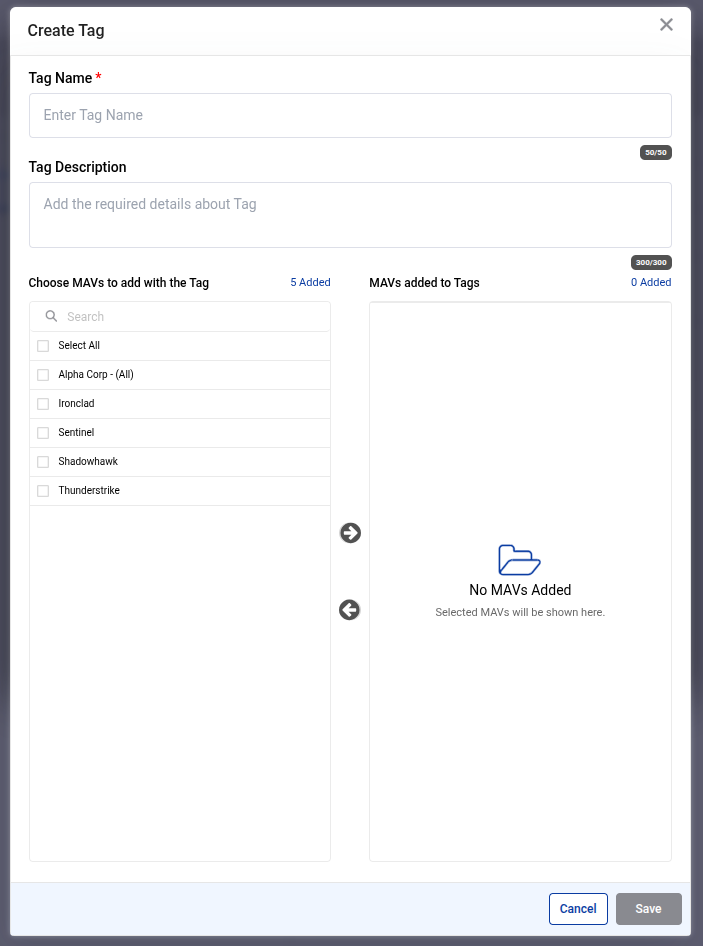
When creating a tag, provide a Tag Name (key) and an optional Description to explain its purpose. After creation, select the MAVs in which this tag key is used. It takes approximately 48 hours for the tag data to be processed and reflected in the reports.
Example
Here is an example of the Create Tag modal, where users can input tag details and choose which MAVs to associate with the tag.
Manage Tags
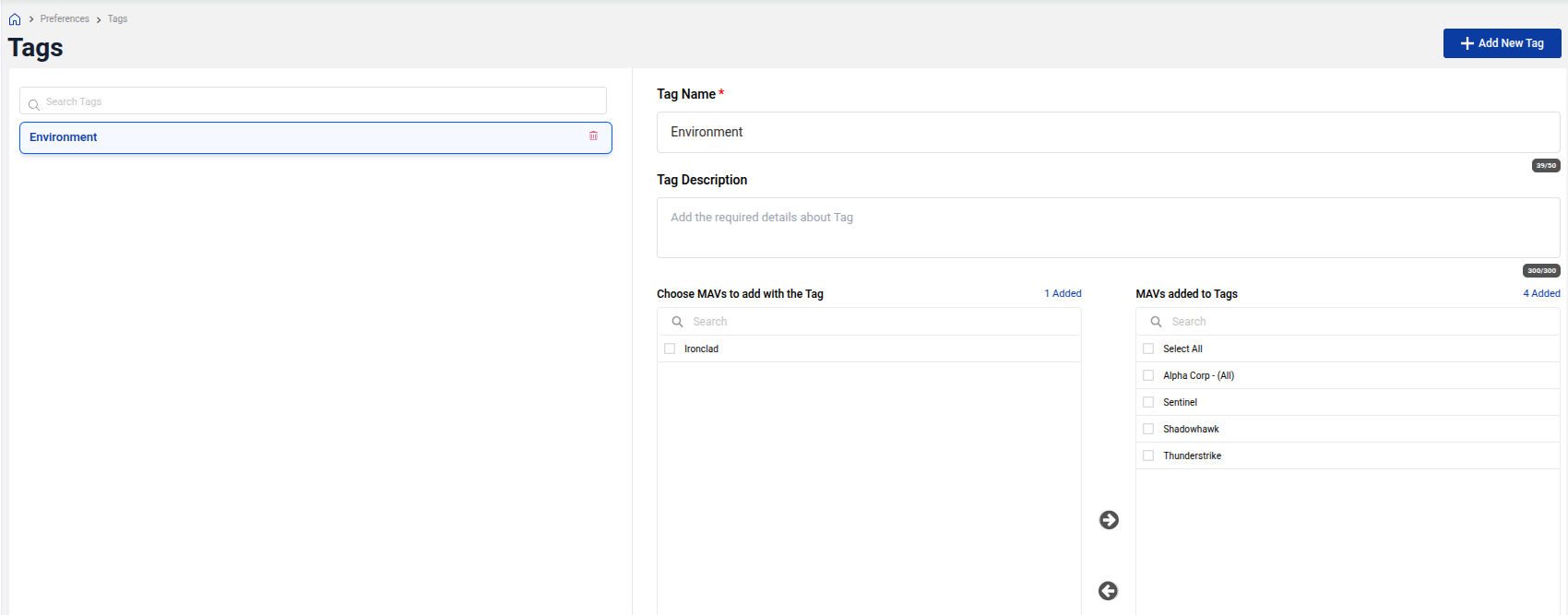
You can edit existing tags at any time, update their name, description, or adjust the associated MAVs. This flexibility helps you maintain an accurate tagging strategy as your cloud footprint grows.
Example
Below is an example of the Tags Management screen, where you can view all tags and their associated MAVs.
Reports Integration
After creating tags and associating MAVs, you can head to the Reports section to generate reports for these tag groupings.
Reports will show:
- Resources grouped by the values of your defined tag key (e.g.,
dev,prod). - A dedicated untagged section for resources not containing the selected tag key.
- Costs and usage breakdowns for each group.